User Guide
How to use NORAZO, step by step with screenshots.
1Getting started — sign in
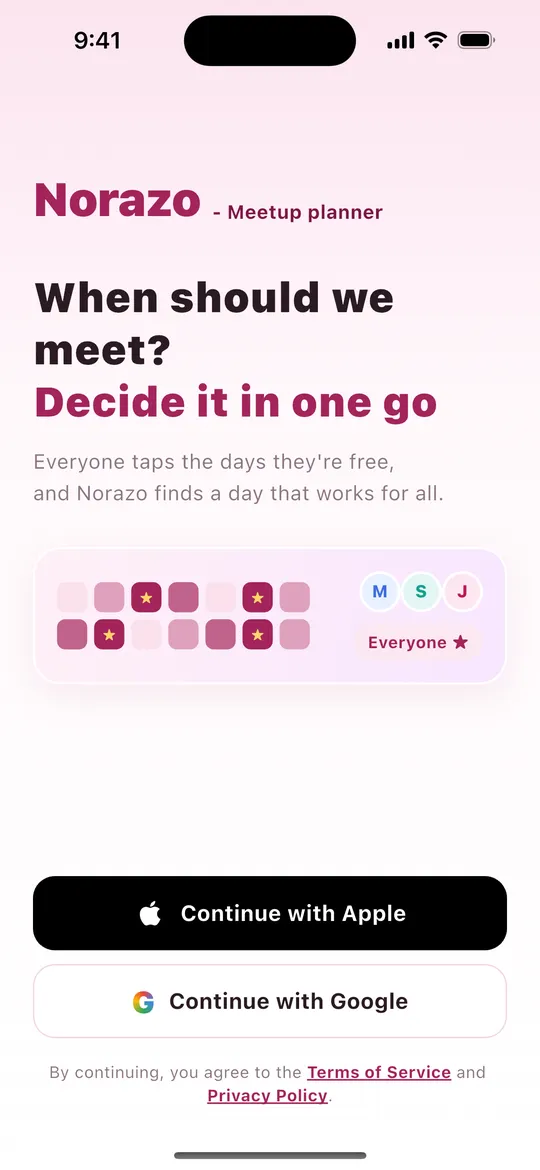
- Open the app to see the sign-in screen.
- Tap Continue with Apple (iPhone) or Continue with Google.
- Your account is created automatically the first time. No password needed.
2Home
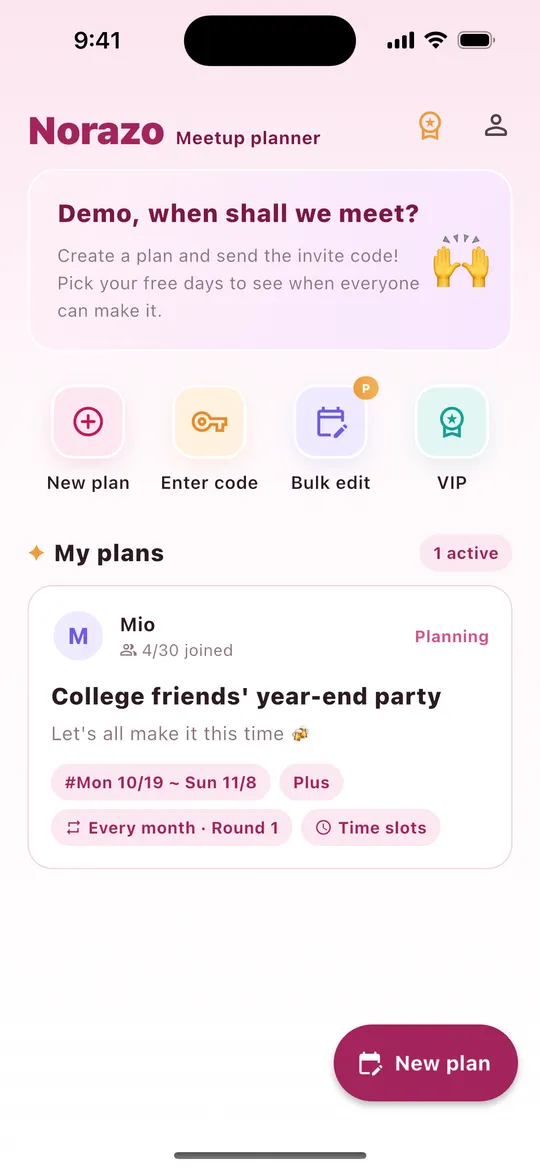
| Where | What it does |
|---|---|
| Medal (top right) | See VIP plans |
| Person (top right) | My info (name, language, updates, user guide, contact, log out, delete account) |
| New plan | Create a plan (same as the big button at the bottom right) |
| Enter code | Join with an 8-character code from a friend |
| Bulk edit Basic | Change your free days across several plans at once |
| My plans | Plans you're in, marked "Planning" or "Confirmed" |
3Create a plan
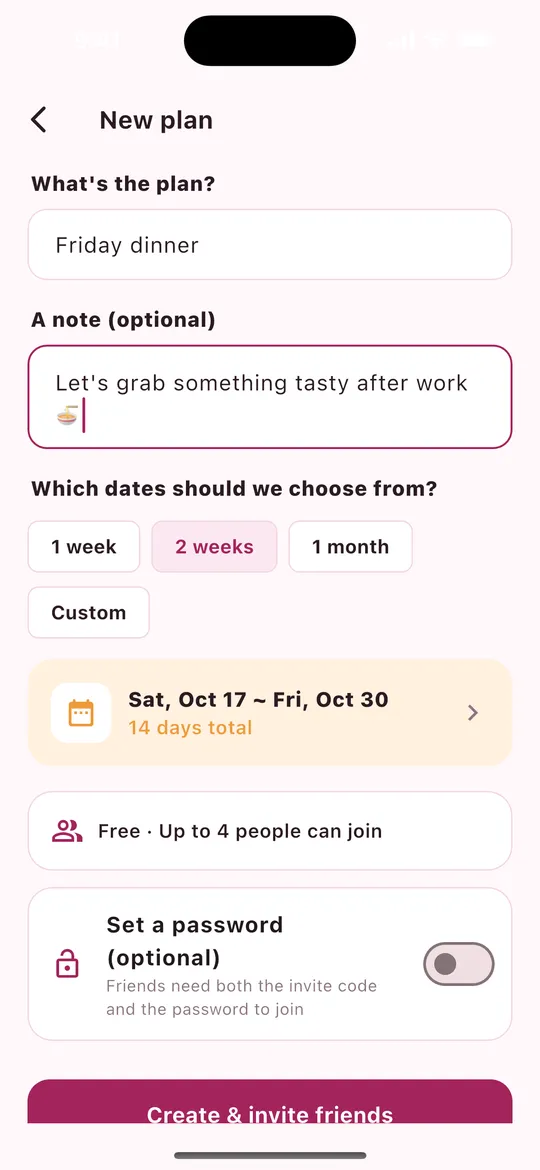
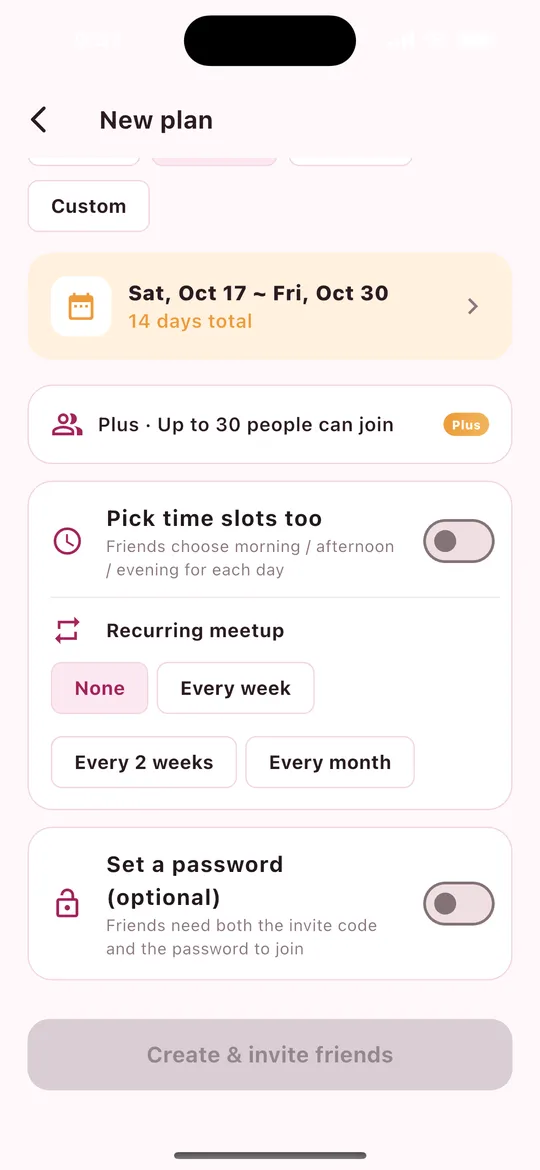
- What's the plan? — enter a name (required).
- A note — a message your friends will see (optional).
- Which dates should we choose from? — pick 1 week, 2 weeks, 1 month, or Custom.
- The maximum group size for your plan is shown (Free 4, Basic 10, Plus 30).
- Set a password (optional) — friends then need both the invite code and the password.
- Tap Create & invite friends.
Only for Plus members Plus (right screenshot)
- Pick time slots too — friends choose morning / afternoon / evening for each day.
- Recurring meetup — every week, every 2 weeks or every month. When a date is confirmed, the next round opens automatically with the same members.
4Invite friends
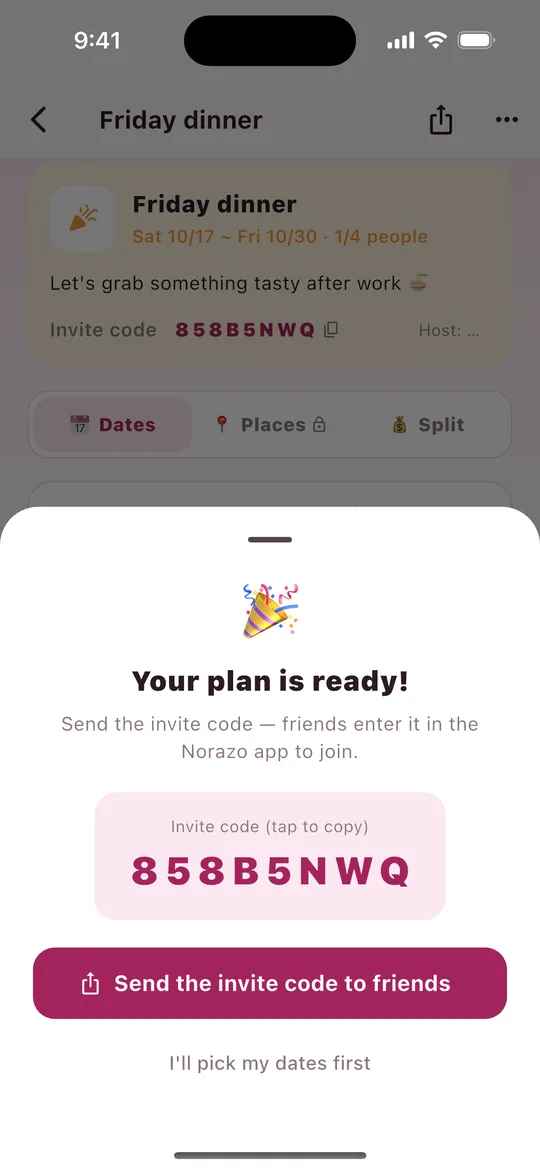
- After creating a plan you get an 8-character invite code. Tap it to copy.
- Tap Send the invite code to friends to share it via LINE, Messages and more. A download link is included.
- To send it again later, tap Share at the top right of the plan, or tap the invite code to copy it.
Your friends install NORAZO, sign in, and enter the code in Enter code.
5Pick your available dates
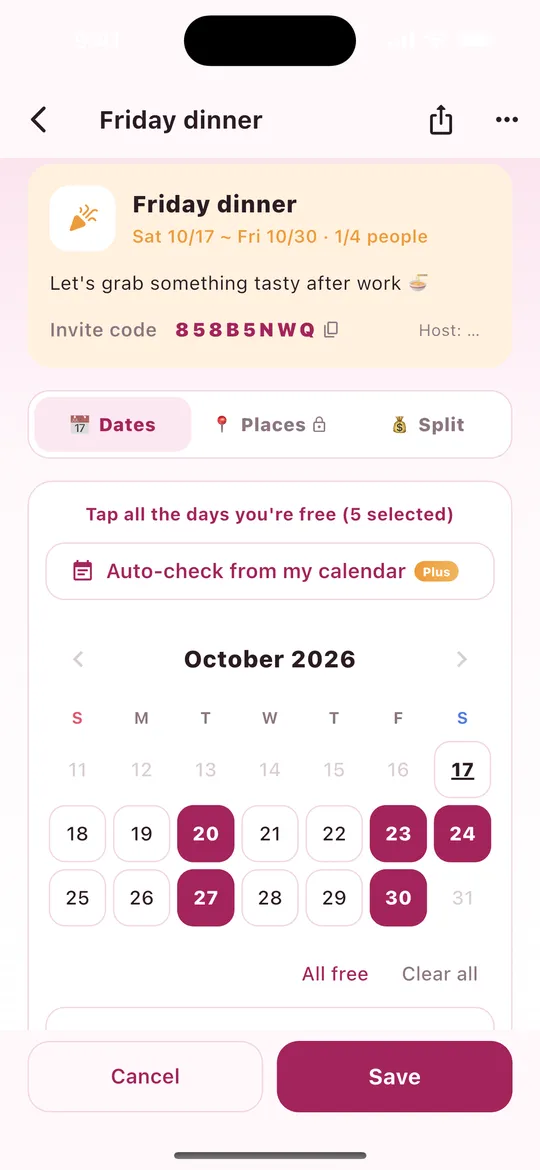
- Tap Pick my available dates at the bottom of the plan.
- Tap every day you're free. Tap again to unselect.
- Use All free or Clear all to change everything at once.
- In time-slot plans, choose morning / afternoon / evening for each day.
- You can leave a note below (e.g. "Weekdays: evenings only").
- Tap Save. (Cancel discards your changes.)
6Best dates & confirming
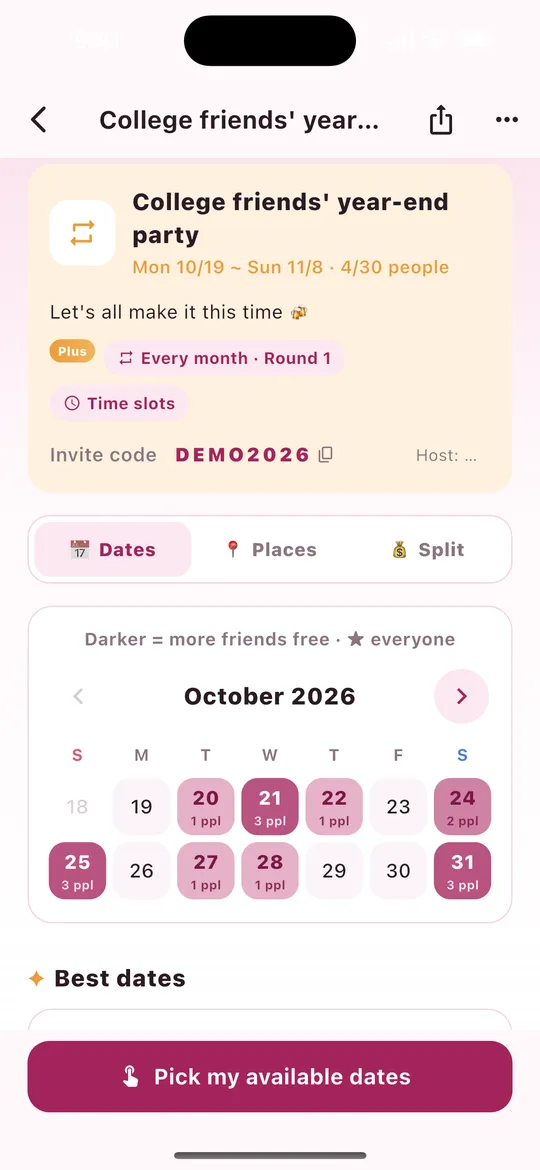
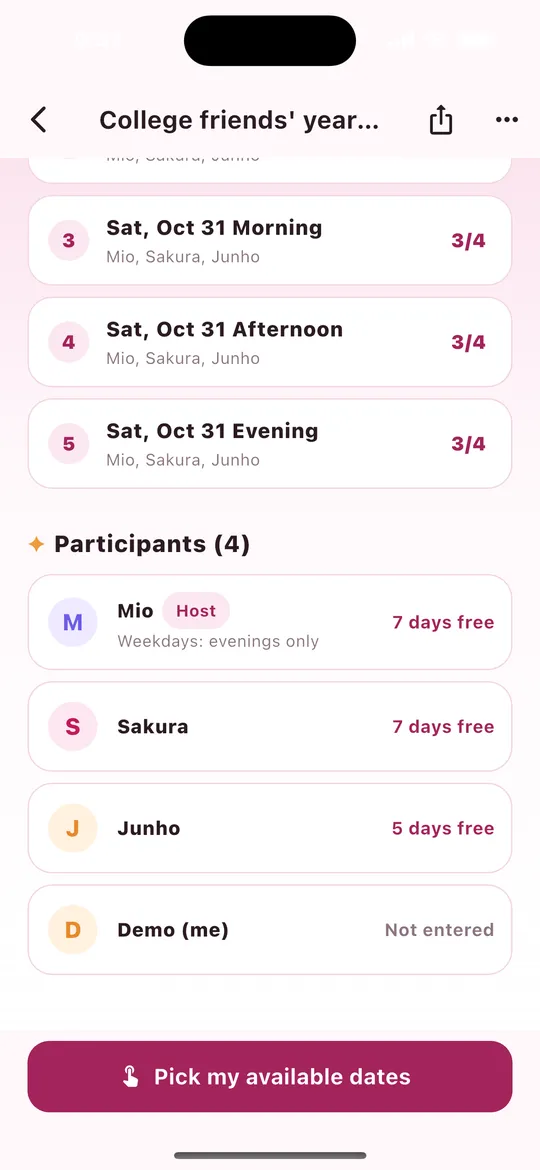
- Darker days have more friends free. ★ means everyone is free.
- Best dates — ranked by how many people can come, then by the earliest date. You can see who's free.
- Participants — how many days each friend is free, or "Not entered" yet.
- Confirm a date (host) — tap the confirm button on a best date, or tap a day in the calendar and choose Confirm this day. Everyone gets notified.
- Once confirmed, use Add to calendar to put it in your calendar.
- Reminders Plus — the host can tap Remind N next to Participants to nudge friends who haven't picked dates (once every 3 hours).
7Join with an invite code
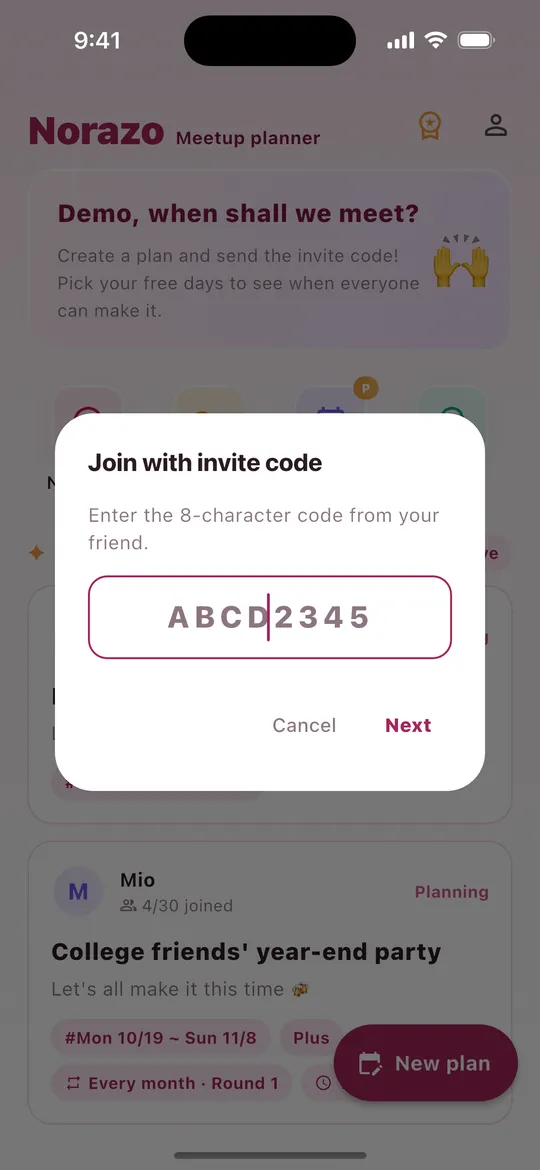
- Tap Enter code on Home.
- Enter the 8-character code from your friend and tap Next (not case-sensitive).
- If the plan has a password, enter it too.
- The plan opens and you can pick your dates right away.
8Decide where to go Basic
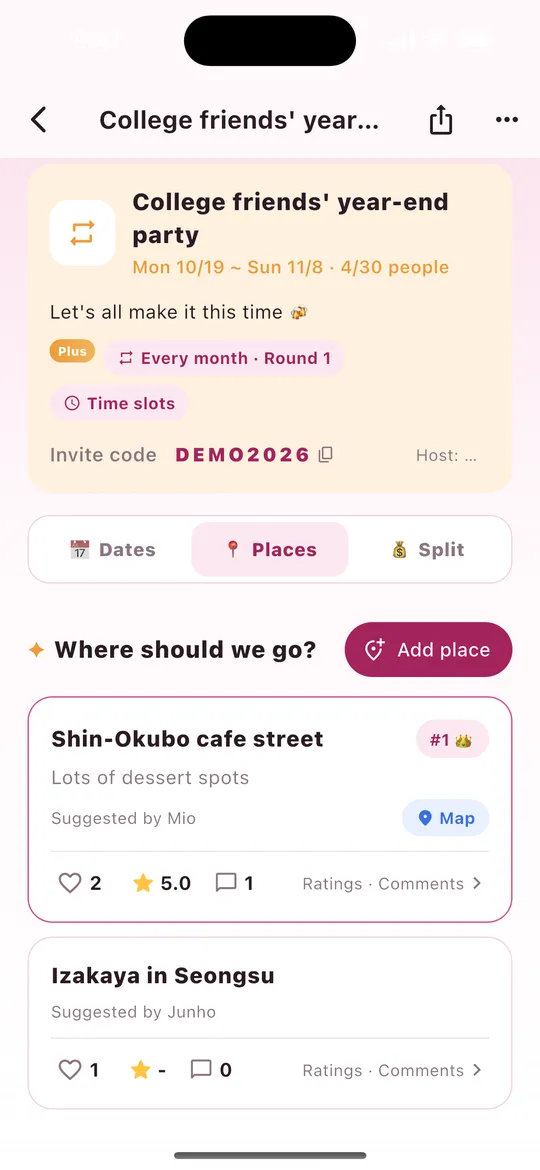
- Open the Places tab in a plan.
- Tap Add place → name → note → Google Maps link (optional). You can paste Google Maps' "Share" text as-is; only the link is kept.
- Vote with ♡, and tap a place to leave a ★ rating and comments.
- Map opens Google Maps. The place with the most votes gets #1 👑.
Available in plans created by a Basic or Plus host. Free plans show 🔒 on the tab.
9Split the bill Basic
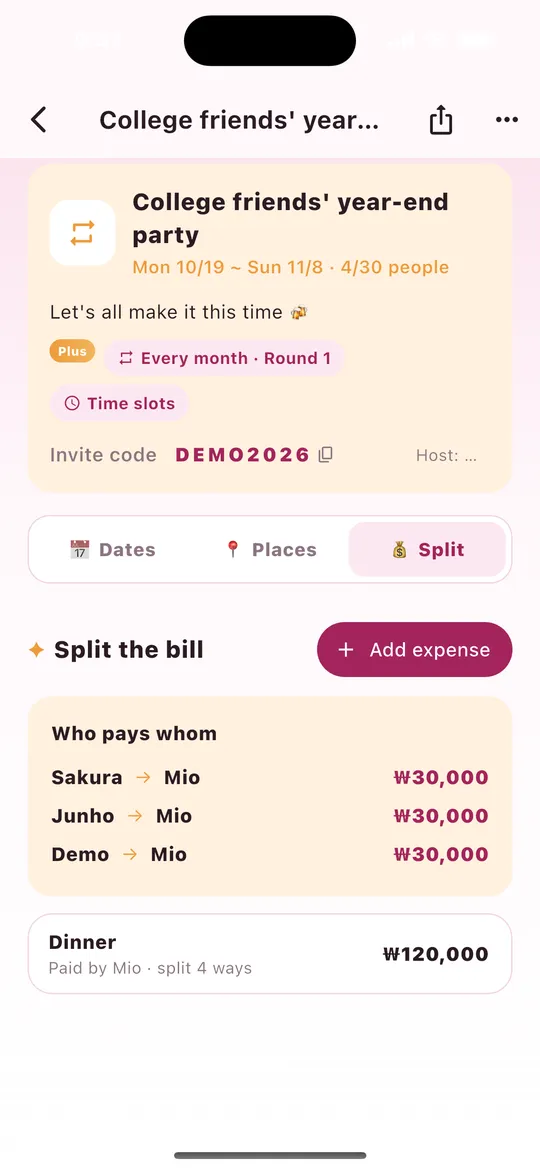
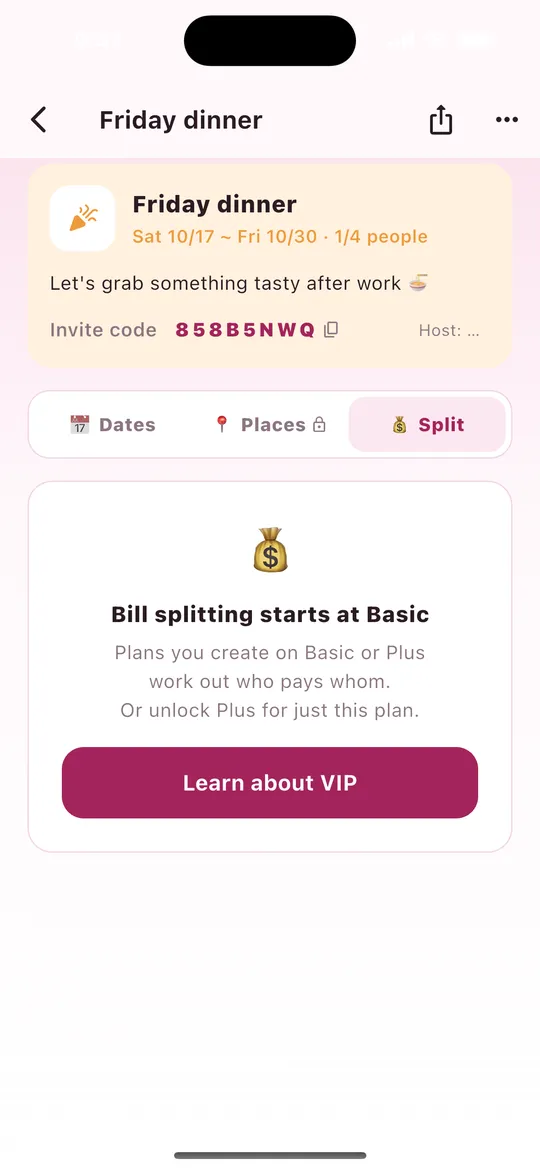
- Open the Split tab → Add expense.
- Enter what it was (e.g. Dinner), the amount and currency (₩ · ¥ · $).
- Choose who paid and who shares it.
- "Who pays whom" shows the transfers needed, using the fewest payments.
- Remove a wrong entry with the trash button (the person who added it or the host).
Different currencies are calculated separately. NORAZO only calculates; it doesn't move money. Free plans show the notice on the right.
10Pick time slots (morning, afternoon, evening) Plus
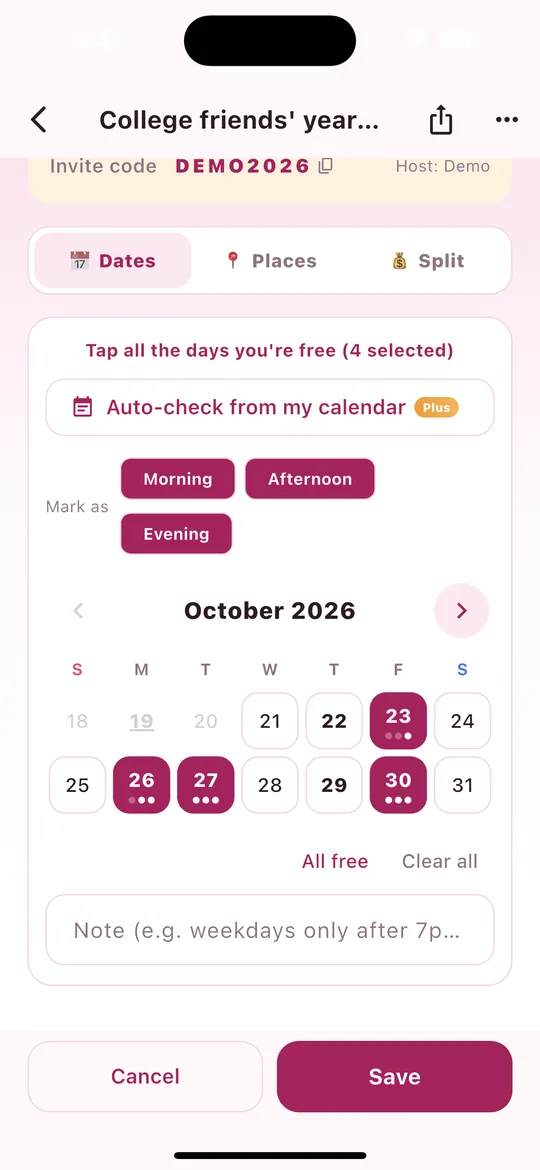
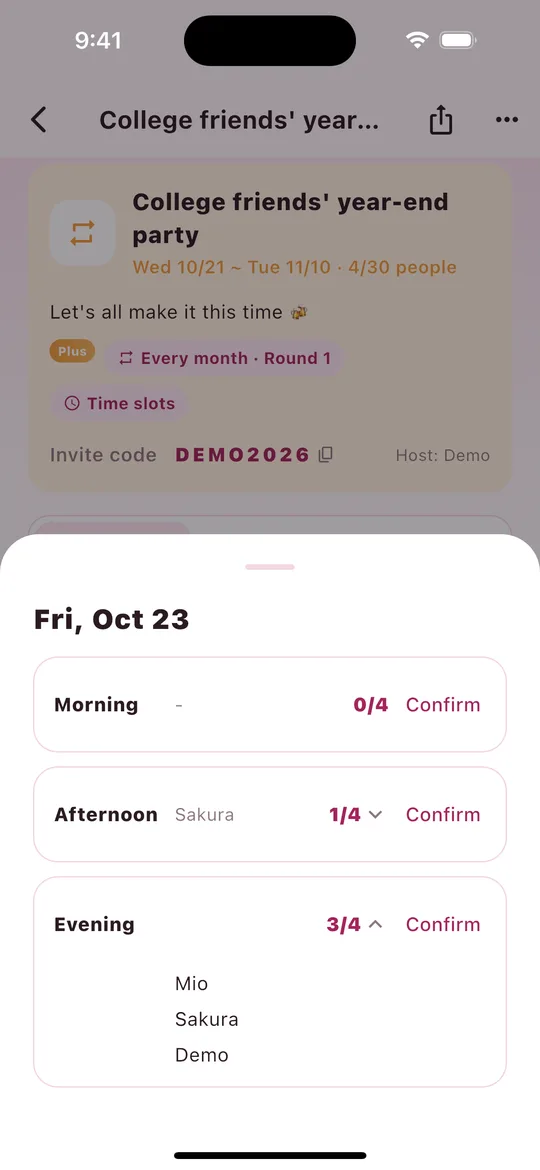
When the host turns on Pick time slots too while creating a plan, everyone can match not just the day but also morning (9-12), afternoon (12-18) and evening (18-23).
- Tap Pick my available dates. The Mark as buttons (Morning, Afternoon, Evening) appear above the calendar.
- Leave on only the slots you're free, then tap dates on the calendar. Each tapped date gets those slots. (All three are on at first.)
- The three dots under a date are morning, afternoon and evening. Dark dots are the slots you're free.
- Tap Save and you're done!
See who's free (right screenshot)
- Tap a date on the plan's calendar to see how many people are free in each slot (e.g. 3/4) and who.
- With lots of people, names are cut to 3 lines. Tap a row to list everyone, one name per line; tap again to fold it.
- Best dates are ranked by day, regardless of slot. The slot is picked when confirming (next section).
11Confirm with a time slot Plus
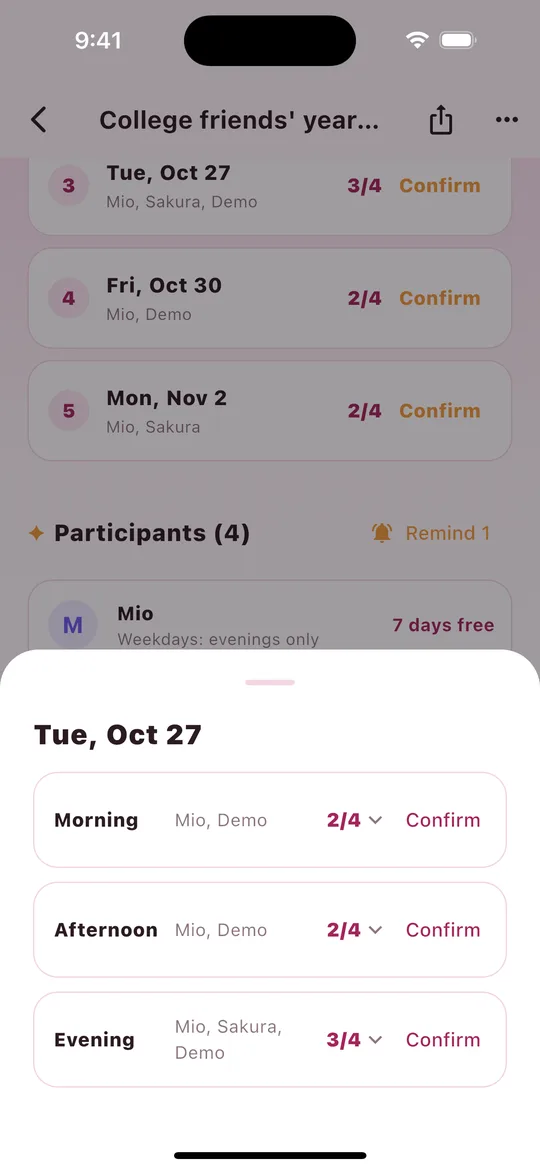
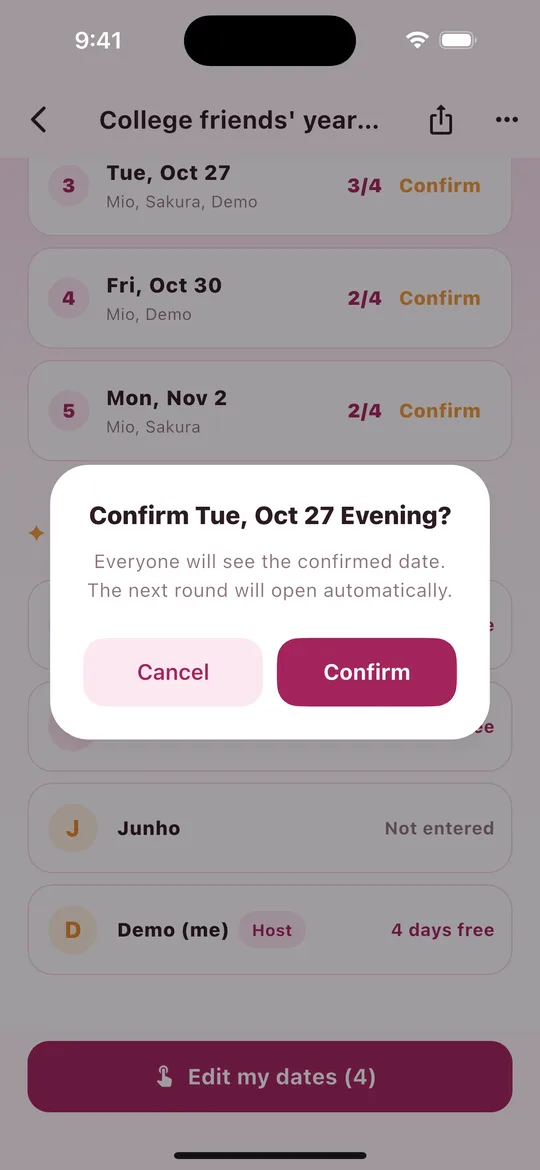
- When the host taps Confirm on a best date, the list of slots for that day opens.
- Tap Confirm next to the slot that works for the most people.
- On "Confirm Tue, Oct 27 Evening?" tap Confirm and you're done!
- The top of the plan then shows the slot too, like Confirmed! Tue, Oct 27 Evening.
- The best dates list also shows the slot on the confirmed date.
- Everyone except the host gets a confirmation notification (push).
- Add to calendar adds the plan to your calendar for that slot (e.g. 18:00-23:00).
- Confirmed by mistake? Use Cancel confirmation in the ⋯ menu at the top right.
12Auto-check from my calendar Plus
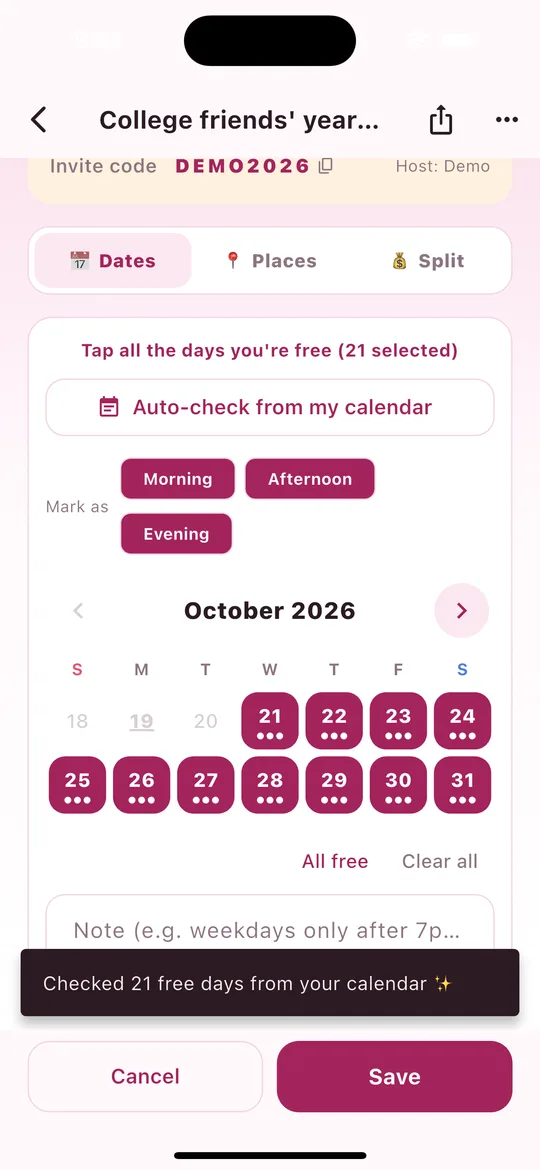
Looks at your phone's calendar (anything synced to the device, such as Google or Apple Calendar) and automatically picks the days you have nothing on.
- In a plan, tap Pick my available dates (or Edit my dates).
- Tap Auto-check from my calendar.
- The first time, your phone asks for calendar access. Tap Allow.
- You'll see "Checked N free days from your calendar ✨" and the free days are checked.
- Adjust any dates if needed, then tap Save. (Nothing is saved until you do.)
- In time-slot plans, only the slots that clash with your events are left out. E.g. if you have something in the evening, only morning and afternoon are checked that day.
- Days with an all-day event and past days are not checked.
- Read-only calendars such as holidays and birthdays are ignored.
- Your calendar is read only on your phone and never sent to our server. Only the dates you pick are saved.
13Remind friends & everyone-picked alert Plus
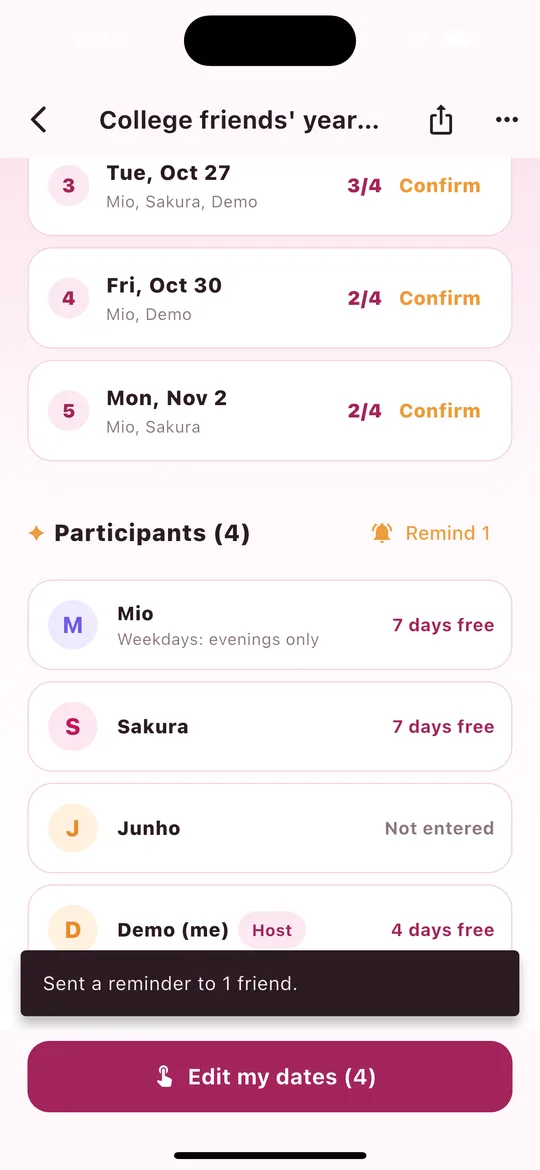
- Scroll down the plan. Next to Participants there's a Remind N button (hosts only).
- Tap it to send a push notification only to friends who haven't picked dates yet ("Not entered").
- When you see "Sent a reminder to N friends.", it's done!
- You can send it once every 3 hours per plan. Tapping again too soon shows "You can send another reminder in a few hours."
- Friends who saved zero dates also count as "Not entered" and get the reminder.
- If everyone has already picked, you'll see "Everyone has already picked dates."
- Everyone-picked alert: when all participants have picked their dates, the host automatically gets "Everyone has picked dates. Time to confirm!"
14Recurring meetups (next round created automatically) Plus
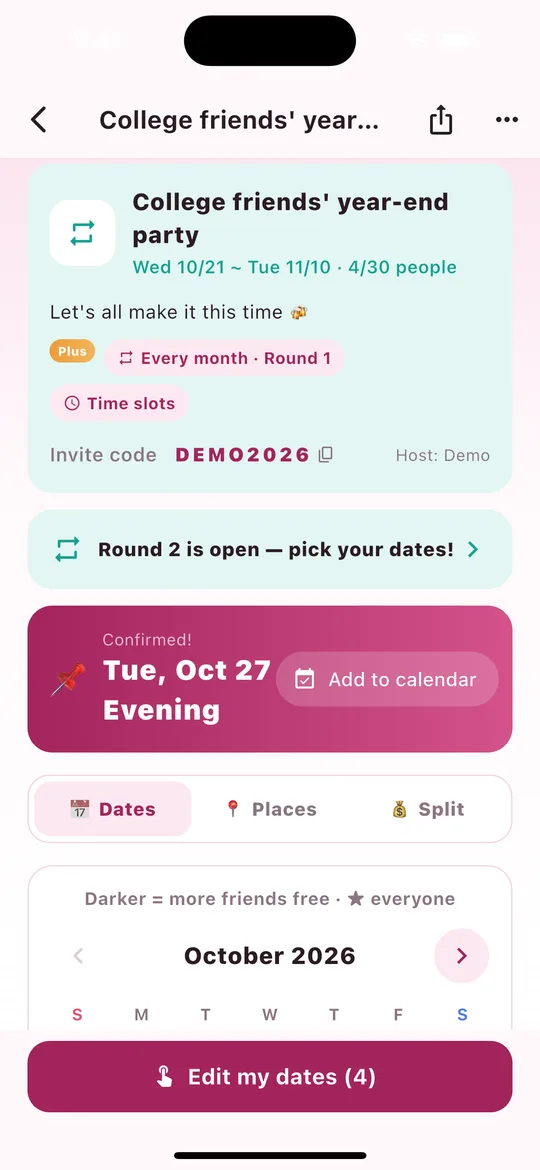
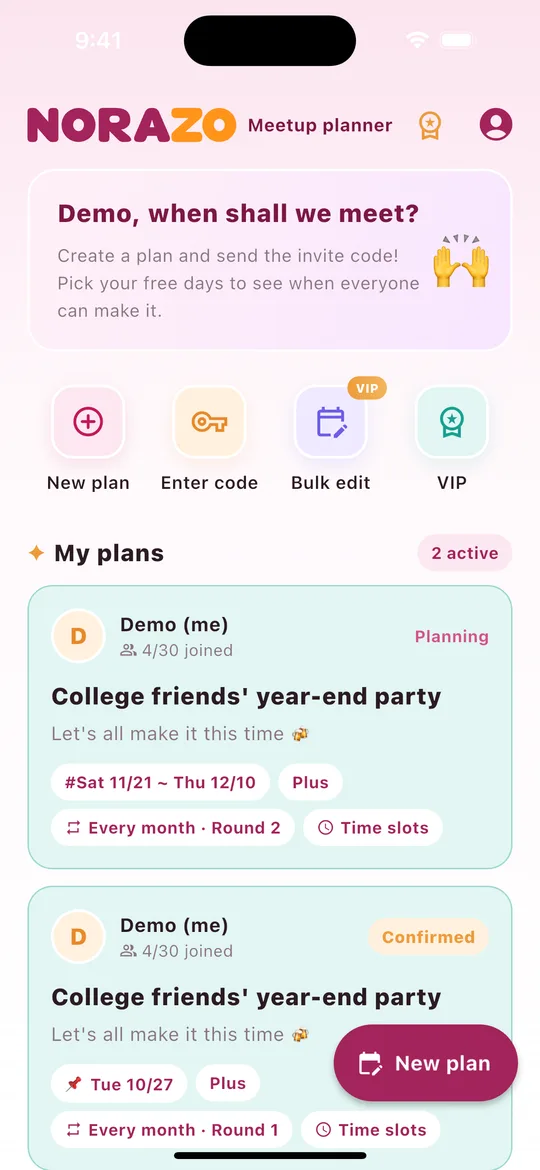
If your group meets every week, every 2 weeks or every month, choose Recurring meetup when creating the plan.
- When creating a plan, pick Recurring meetup → Every week, Every 2 weeks or Every month.
- Collect dates as usual and the host confirms.
- The moment it's confirmed, the next round is created automatically with the same members and settings (time slots, password, theme). Only the candidate dates move forward by one cycle.
- Everyone gets "Round 2 is open — pick your dates!" and the plan shows a Round 2 is open button that takes you there.
- Each round appears separately in My plans on Home, e.g. "Every month · Round 1 · Confirmed" / "Every month · Round 2 · Planning" (right screenshot).
- The next round gets a new invite code. Current members are already in, so nobody needs to join again.
- Dates and notes are picked fresh for each round.
15Decorate a plan (theme color) Plus
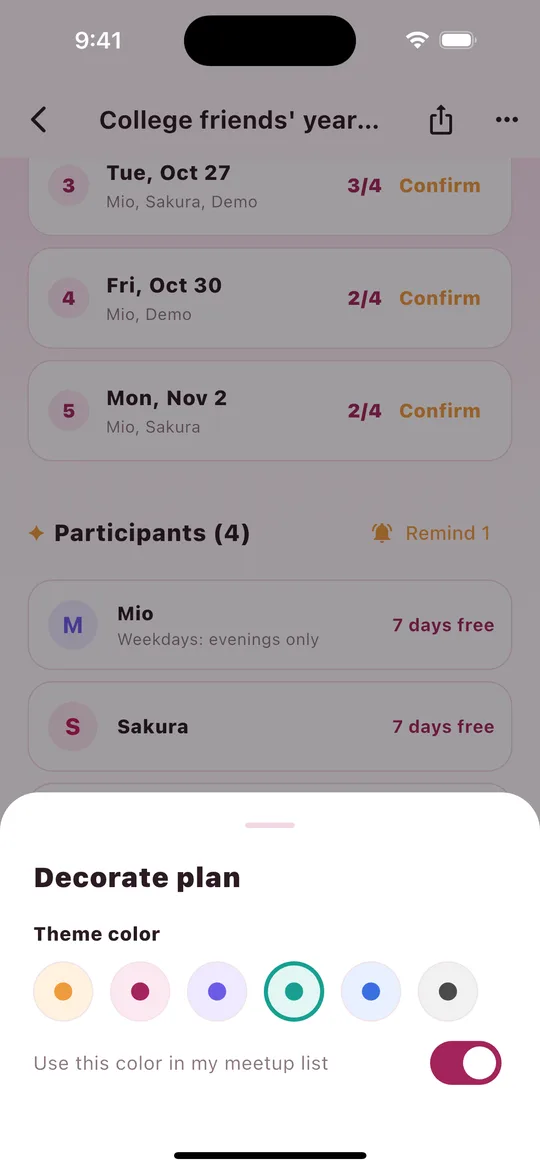
- The host taps ⋯ at the top right of the plan → Decorate plan.
- Pick one of 6 theme colors. The card at the top of the plan changes right away.
- Turn on Use this color in my meetup list to show the plan's card on Home in the same color.
Handy for telling plans apart at a glance. Everyone in the plan sees the same color.
16Notifications (push) at a glance
| Notification | Who gets it | When | Plan |
|---|---|---|---|
| Plan confirmed | Everyone except the host | When the host confirms a date | Free |
| Reminder | Friends who haven't picked dates | When the host taps Remind N (once every 3 hours) | Plus plan Plus |
| Everyone picked | Host | When all participants have picked dates (automatic) | Plus plan Plus |
| Next round open | Everyone | When a recurring meetup is confirmed and the next round is created (automatic) | Plus plan Plus |
- Tapping a notification opens that plan right away.
- While you're in the app, a banner at the top and a message at the bottom let you know.
- Notifications arrive in the language the recipient chose in the app.
- Not getting notifications? Allow them in your phone's Settings › Notifications › NORAZO.
17VIP plans
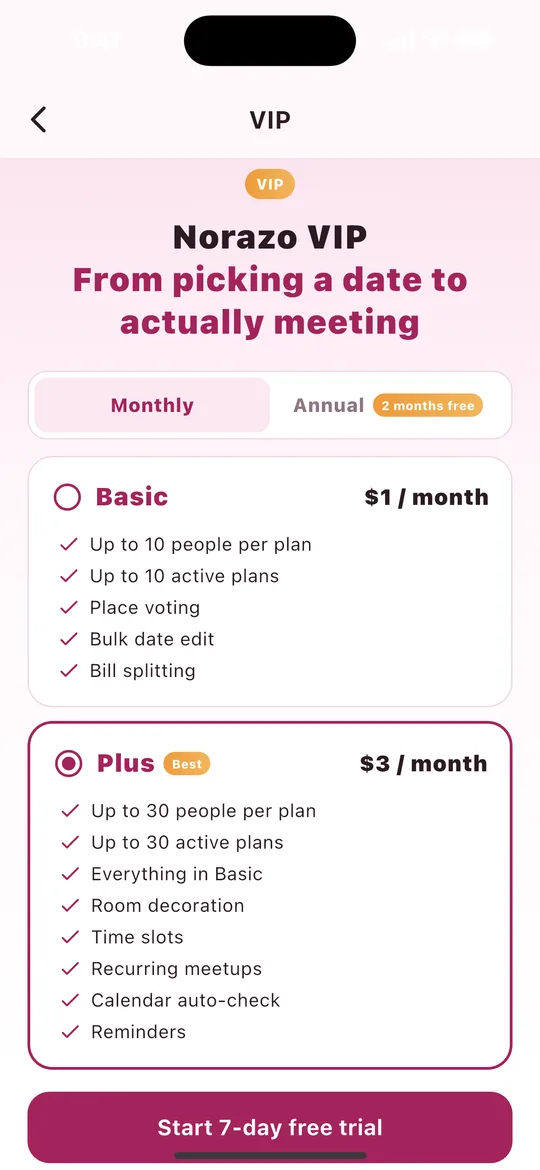
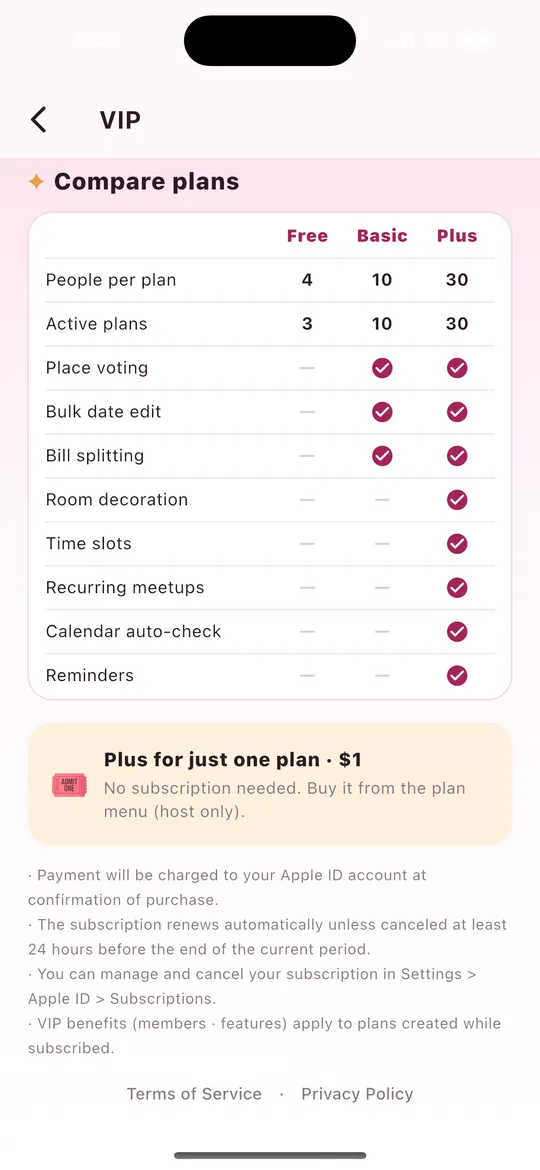
| Basic | Plus | |
|---|---|---|
| Monthly | $1 | $3 |
| Annual | 10× monthly (2 months free) | 10× monthly (2 months free) |
| People per plan · active plans | 10 · 10 | 30 · 30 |
| Features | Place voting, bulk date edit, bill splitting | Everything in Basic + plan decoration, time slots, recurring meetups, calendar auto-check, reminders |
- Tap the medal on Home or VIP → Monthly/Annual → choose a plan → buy. New users may see a 7-day free trial.
- Plus for this plan only ($1) — upgrade a single plan without subscribing. The host buys it from the ⋯ menu in the plan.
- VIP benefits (group size and features) apply to plans created while you're subscribed.
18Manage, cancel, refund & restore
Cancel on iPhone / iPad
- Open Settings → tap your name (Apple ID) at the top → Subscriptions.
- Choose NORAZO - Meetup Planner.
- Tap Cancel Subscription (or Cancel Free Trial) and confirm.
You can also go to the App Store app → profile picture (top right) → Subscriptions. There you can switch Basic ↔ Plus or Monthly ↔ Annual too.
Cancel on Android
- Open the Google Play Store → profile picture (top right) → Payments & subscriptions → Subscriptions.
- Choose NORAZO - Meetup Planner.
- Tap Cancel subscription and follow the steps.
On the web: play.google.com/store/account/subscriptions.
What happens after cancelling?
- You keep VIP until the end of the period you've paid for; you just won't be charged again.
- Cancel at least 24 hours before the current period ends to avoid the next charge.
- Cancelling during a free trial means you won't be charged when it ends.
- Afterwards you're on the Free plan. Your plans and data stay as they are.
Refunds
- Apple — sign in at reportaproblem.apple.com → choose the purchase → Request a refund.
- Google Play — within 48 hours of purchase, request it from your order history in the Play Store. After that, see Google Play's refund policy.
Restore purchases (new phone)
- Make sure the store on your new phone uses the same Apple ID / Google account.
- Sign in to NORAZO the same way as before (Apple or Google).
- Tap Restore purchases at the bottom of the VIP screen.
19My info — name, language, log out, delete account
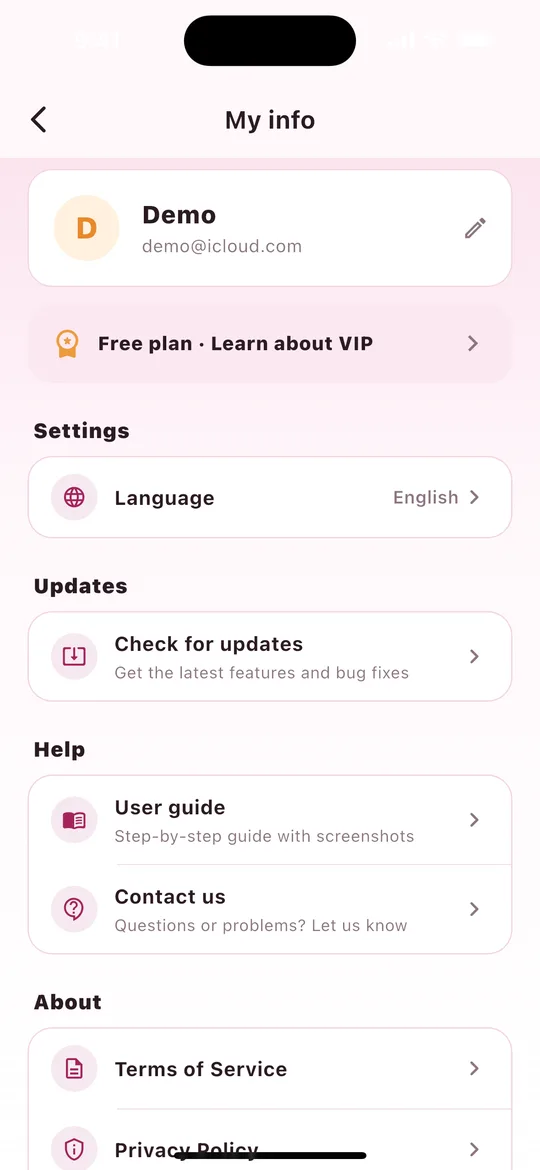
- Change name — tap the pencil next to your name. This is the name friends see in plans.
- Plan — see your current plan and open the VIP screen.
- Settings › Language — Follow the phone setting or choose from 20 languages. Notifications switch language too.
- Updates › Check for updates — opens Norazo's store page.
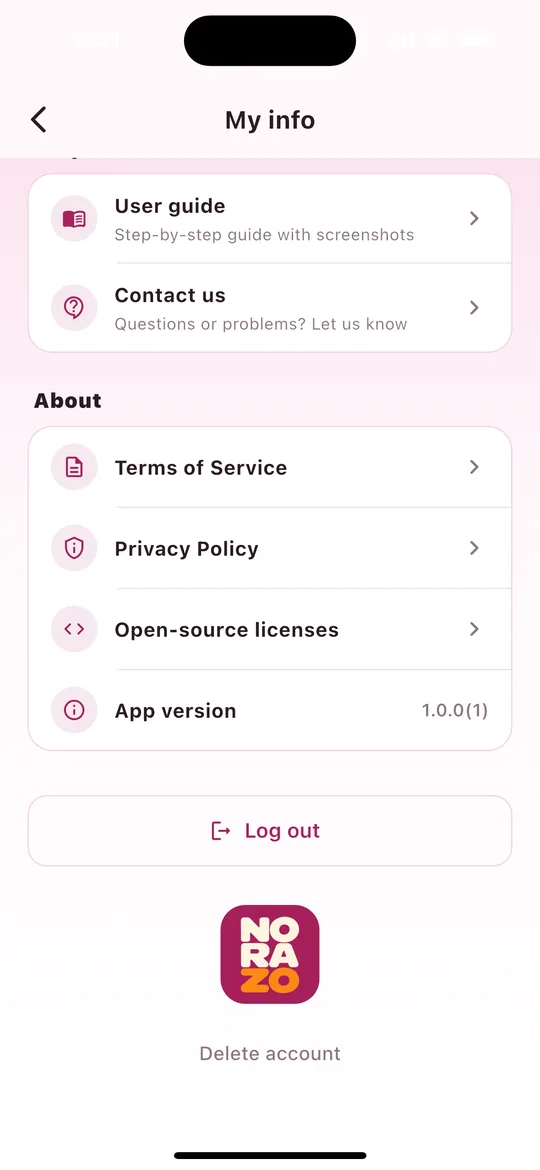
- Help › User guide · Contact us — opens this page in the app's language, or the support page.
- About — Terms of Service · Privacy Policy · Open-source licenses · App version
- Log out — sign in again with the same account and your plans are still there.
- Delete account — all plans you host are deleted and you leave the plans you joined. This can't be undone. Cancel any subscription in the store first.
20FAQ
| Question | Answer |
|---|---|
| Do my friends need the app? | Yes. NORAZO works in the app only. Friends install it, sign in and join with your invite code. |
| Is it free? | Yes. Creating plans, picking dates, best dates, confirming, passwords, Add to calendar and confirmation alerts are free (4 people per plan, 3 active plans). |
| My friend can't join. | The plan may be full. Create a new plan with VIP, or buy "Plus for this plan only" to allow up to 30 people. |
| I can't see time slots or recurring meetups. | They're Plus features, so they appear on the create screen only while you have Plus. |
| Notifications aren't arriving. | Allow them in Settings → Notifications → NORAZO. |
| I cancelled but still have VIP. | That's expected — VIP lasts until the end of the period you paid for. |
| How do I contact you? | See Support or email norazo_support@dream-corporation-inc.com |
Screenshots are examples. The actual screens may look slightly different depending on version and device.